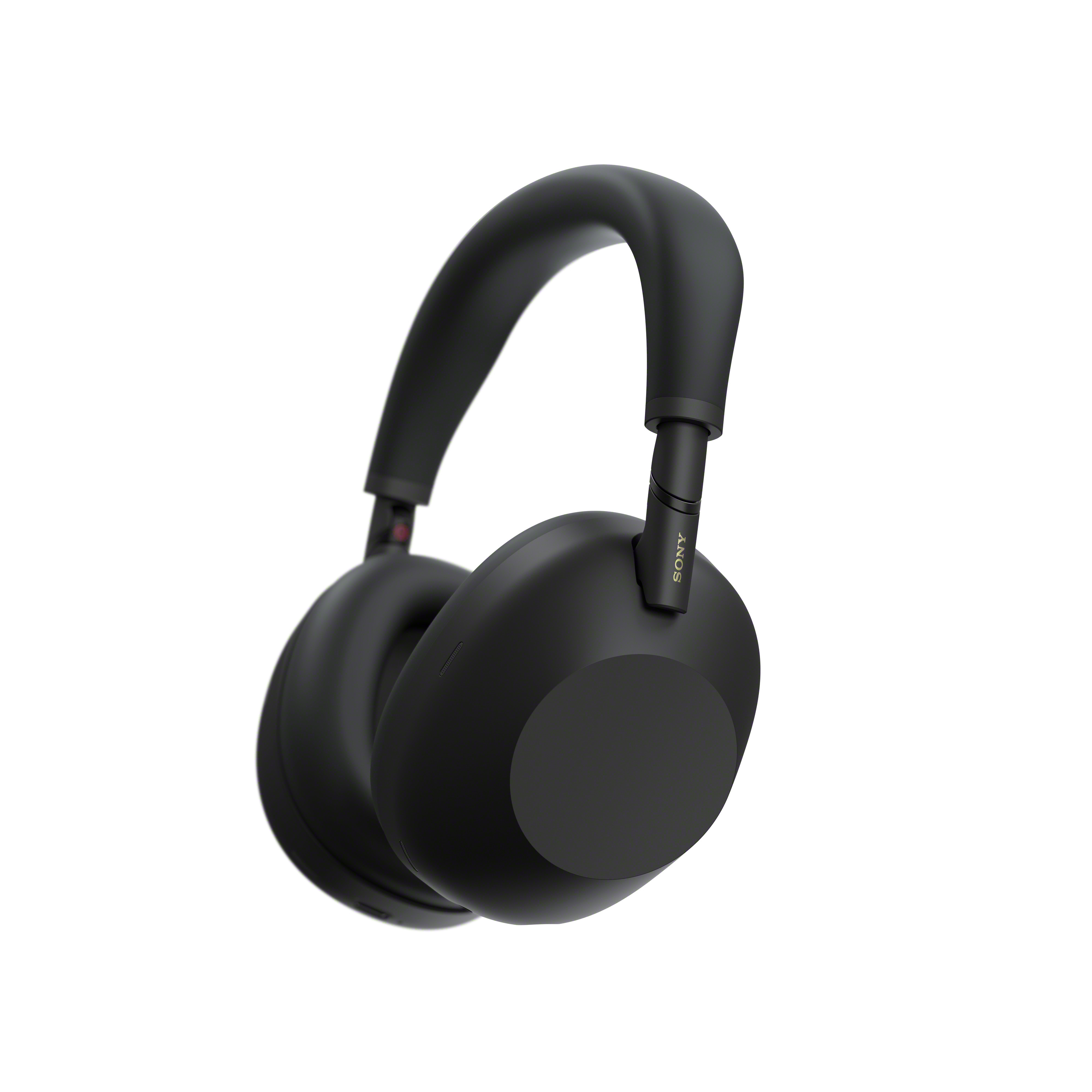



Check out the following steps to pair your Headphones with your Phone or Computer.
Step 1. Set your headphones into pairing mode
Pairing with 1 device only
When you pair the headphones with a device for the first time or after initialising, the headphones automatically enters the pairing mode when you turn it on.
Pairing with 2nd device
- Press and hold the Power button for at least 7 seconds.

- The indicator flashes and it will go into pairing mode

Note: If the pairing is not finished within 5 minutes, the pairing mode on the headphones is cancelled. If this happens, place the headphones into the charging case again and start the operation from the beginning.
Step 2. Operate a device and complete the pairing
iOS Devices (iPhone, iPad and Apple Watch)
- On the Home Screen, select Settings.
- On the Settings menu, select Bluetooth.
- Change the Bluetooth function to ON.
Note: If the Bluetooth function is already set to ON, change it to OFF then back ON again. When the list of available devices appears, select the name of the device you want to pair.

When pairing is complete, the word Connected will be displayed to the right of the device name.

Android Mobile Devices (smartphones and tablets)
- On your Android device, swipe up from the bottom of the screen.
- Select Settings.
- Select Connected devices or Device connection.
- Select Connection preferences.

- Select Bluetooth.

- Set the Bluetooth function to ON.
NOTE: If the Bluetooth function is already set to ON, set it to OFF and then back to ON again.
- On the list of available devices, select the name of the device you want to pair.

- Select PAIR.

- When the pairing process is complete, the word Active will be displayed below the device name.

Windows or MacOS Computer
For Windows or Mac computer, check out this video from the Sony's Bluetooth® Series to learn how to connect your Bluetooth® audio device to a Windows or Mac computer.
Note: If a passkey (or passcode, PIN code, PIN number, password, etc.) input is required, input 0000.


.jpg)